 agrē Release Notes 2.26.03 - October 28, 2026
Last updated: October 28, 2026
Additional process information from FCL may follow the release.
Security
This symbol  indicates that your Local Company Security Administrator needs to make a security permission change to allow user access to the new feature.
Configuration Options
This symbol  indicates a new feature integrates with a Configuration Option (at either the Company, Location, or User level).
Note
Release Notes highlight the best new features and improvements.
Release Notes for the last two years are available from the archives.
 agrē
 FCC - Available Credit API Connection
 Pick Tickets
 Max Quantity per Unit and Transaction
 Pending Manufacturing
 Tax Settings for Energy Products
 agrē Central - Available November 12
Ag Retail Anywhere
Ready to take agrē on the road?
Designed for field staff, managers, and sales reps, agrē Central runs from counter to combine.
 Stay tuned for more info!
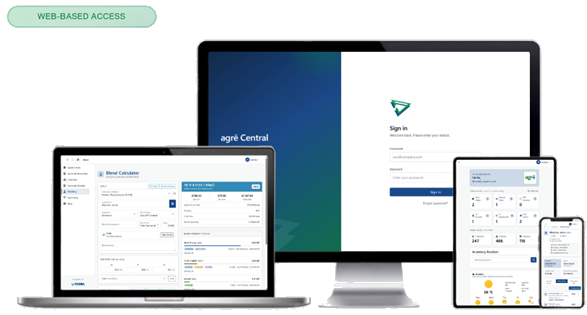
Anywhere you are
File
Accounts Receivable
Pick Tickets
Pick Tickets are used to record product selected, then set aside to be taken later by (or delivered to) customers.
The Pick Ticket reports the details of each ticket, and Pick Ticket Activity reports details of multiple pick tickets over a date range.
Because pick tickets do not affect inventory balances, there is no change to Inventory Position.
More pick ticket features - especially for blends - are coming for Spring 2027
Security
Pick Tickets are secured. All roles may not need permission to perform all actions, but at least one role should have permission to do everything.
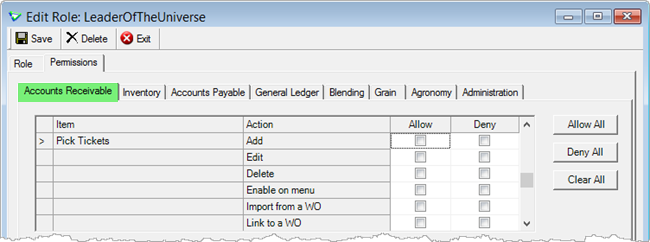
File > Security > Manage Roles
Config Options
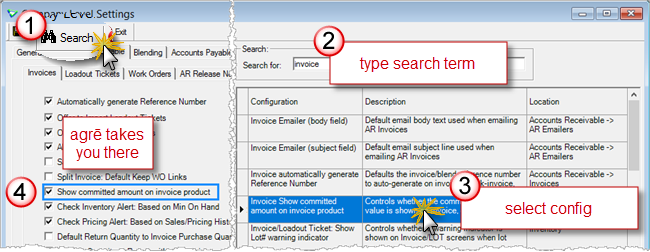
Pick Tickets have config options at the Company, Location, and User levels.
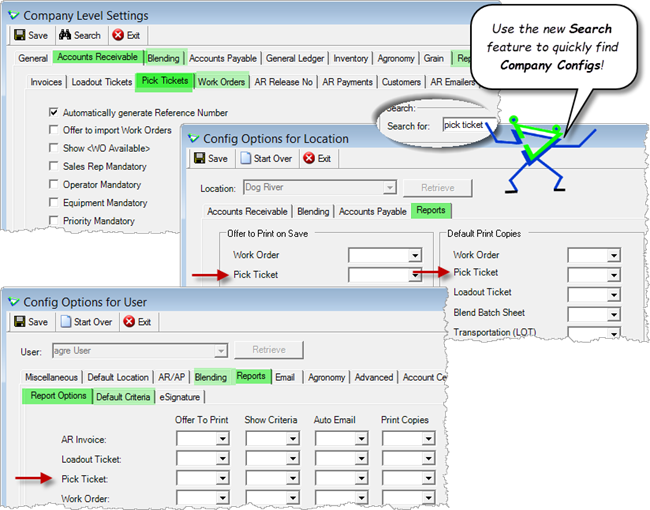
File > Config Options > Company / Location / User
Reference Numbers
Setup Pick Ticket Reference Numbers to have agrē autogenerate them.
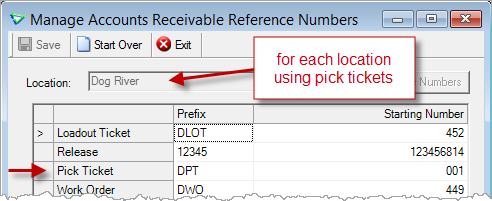
File > Manage > Reference Numbers > Accounts Receivable
Where to Find
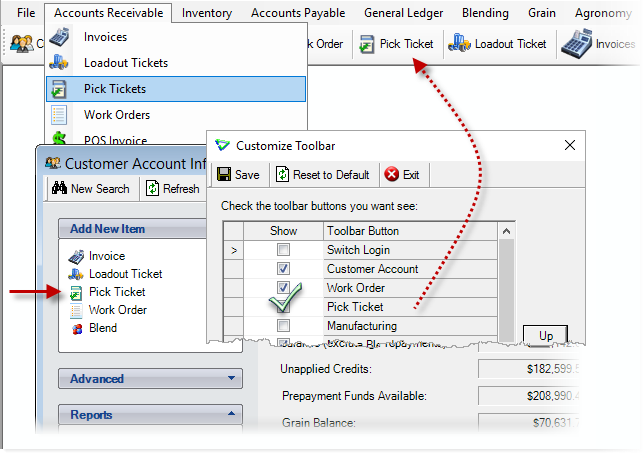
Accounts Receivable > Pick Tickets // Accounts Receivable > Customer Accounts // Window > Customize Toolbar
Products from multiple work orders can be imported to the same Pick Ticket, and WO links* carry through to Loadout Ticket and Invoice.
*quantity is linked on the Pick Ticket, but not drawn down from Work Order until saved on a LOT
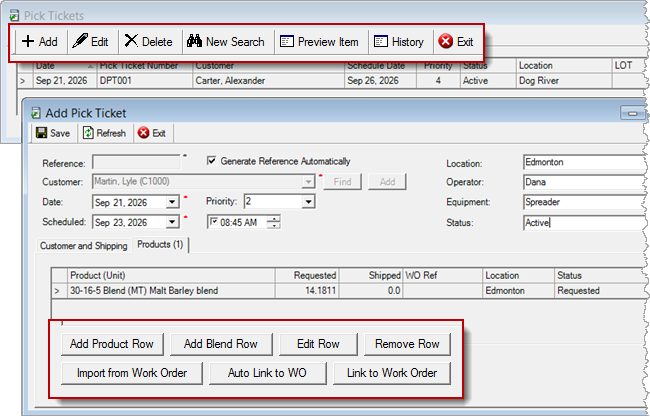
Accounts Receivable > Pick Tickets
Product Status
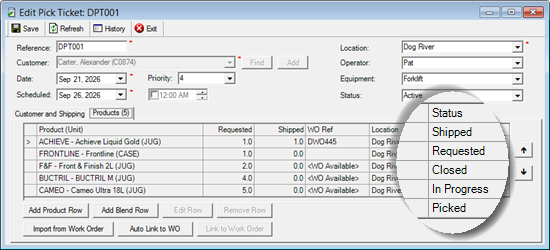
Each product - including blends - has its own status to see at a glance what's been picked and what hasn't.
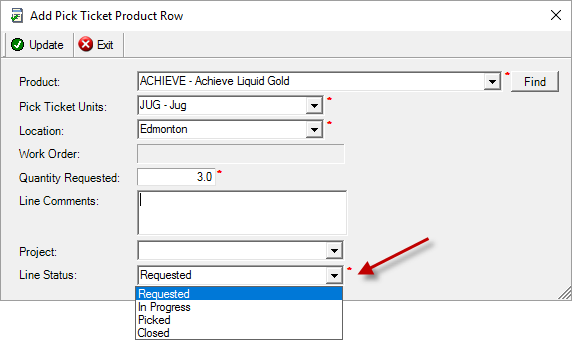
Accounts Receivable > Pick Tickets / Add Product
Import to Loadout Ticket
Picked products are imported to Loadout Tickets.
agrē will flag the imported lines on the Pick Ticket as "Shipped"; if all lines are shipped it will close the pick ticket.
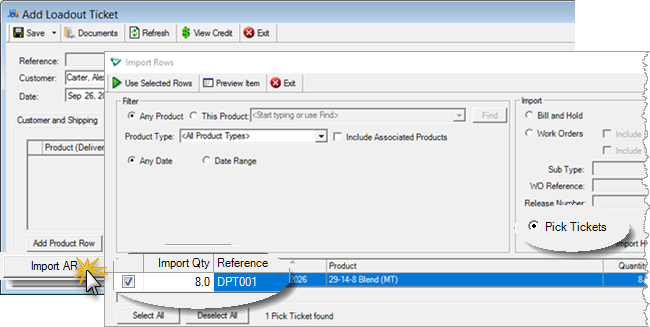
Accounts Receivable > Loadout Tickets
Reporting & Exporting
The Pick Ticket report lists all the products. For blends you can generate a batch sheet and update actuals.
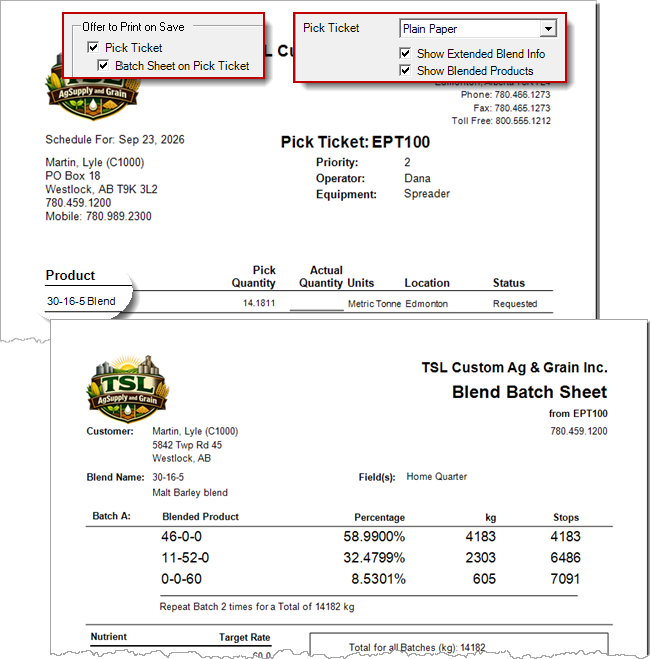
Accounts Receivable > Pick Tickets / Preview
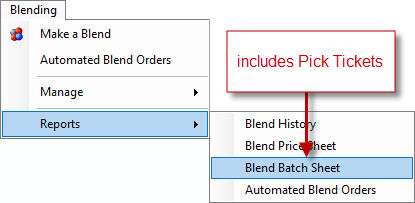
Tip
You can also print pick ticket batch sheets from the menu.
Pick Ticket Activity displays details for multiple pick tickets.
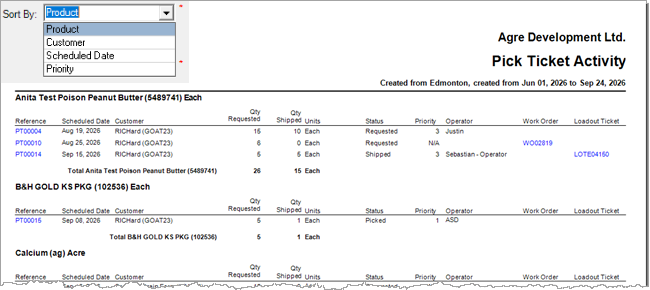
Accounts Receivable > Reports > Pick Ticket Activity
There's data exports for Pick Tickets too.
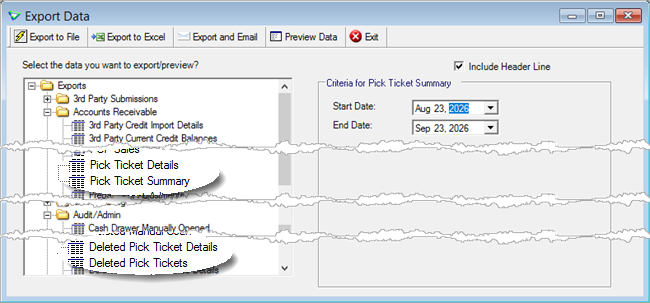
File > Exports > Data
Loadout Tickets
Blend Embedded Links
Embedded Links in blends are displayed.
Also displayed on Loadout Ticket report.
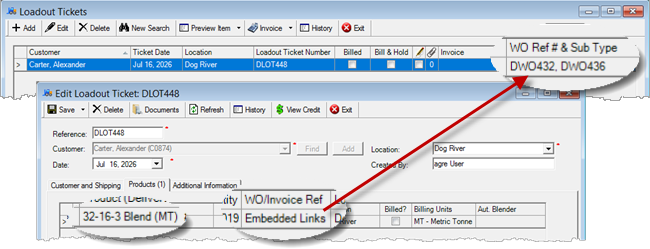
Accounts Receivable > Loadout Tickets
Invoices
Notify on $0.00 Price
When saving Invoices and POS invoices, display a popup warning if any product row is priced at $0.
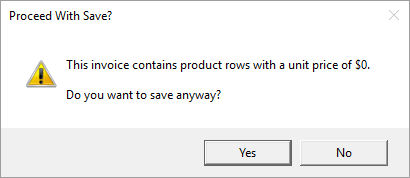
Accounts Receivable > Invoice and POS Invoice
Returns
Inactive products cannot be returned until they have been activated again.
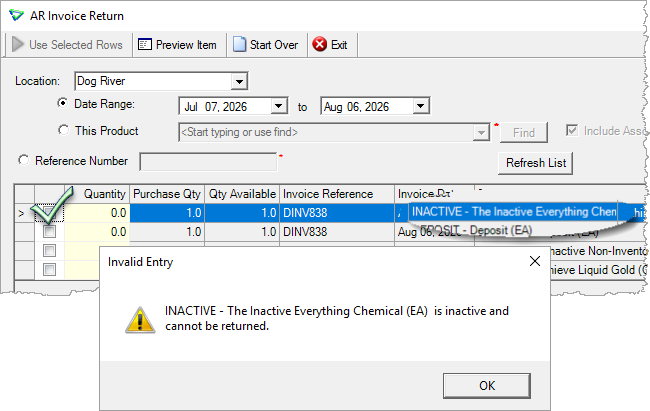
Accounts Receivable > Invoice / Return Invoice
Emailers
Invoices - Filter by Create Date
Filter invoices by the date they were added instead of the date on the invoice.
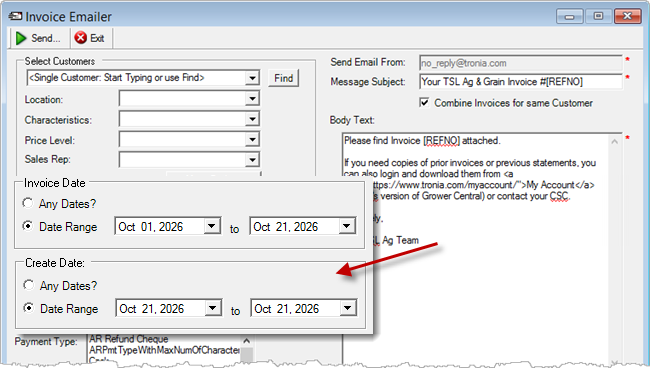
Accounts Receivable > Email Reports > AR Invoices
Add Attachments
Attach additional files when batch emailing Work Orders, Invoices, and Statements.
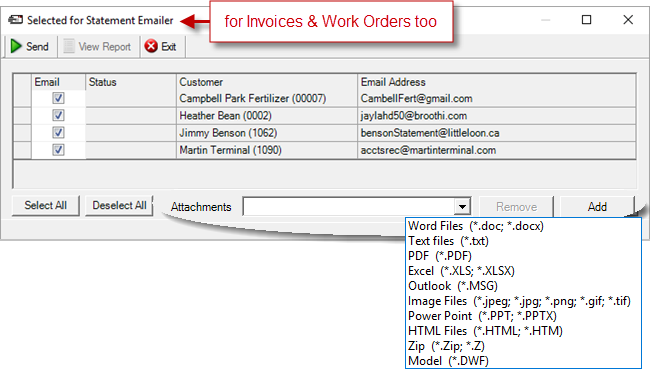
Accounts Receivable > AR Emailer (Statements, Invoices, Work Orders)
The Email Batch Confirmation reports include the attached filenames.
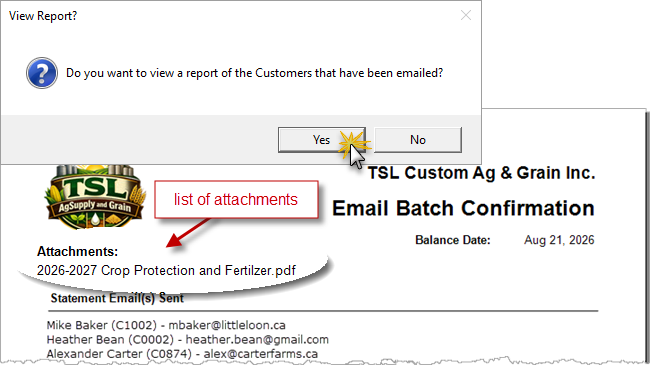
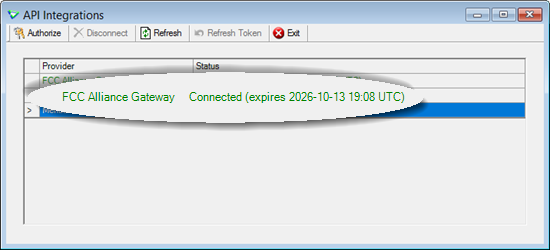
FCC - Available Credit API Connection
Receive "1 click" credit balance updates from the web.
 Please refer to the 3rd Party Credit Management white paper for more details.
Contact your CSC to get started.
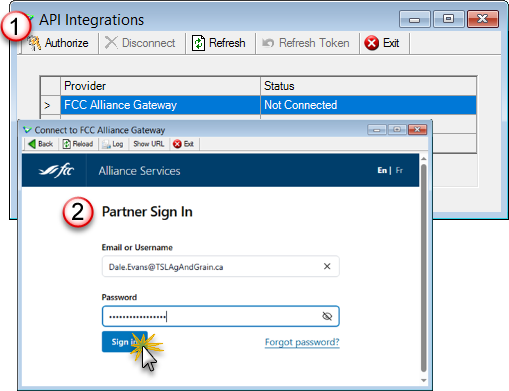
File > Config Options > API Integrations
Batch update via a Web Import instead of importing a file.
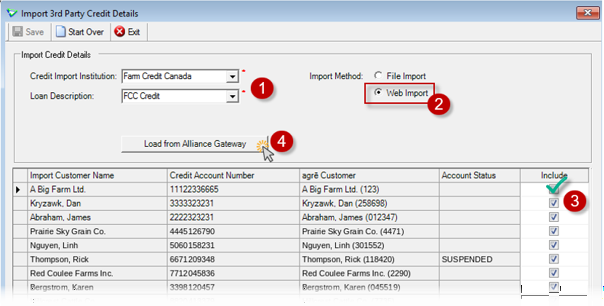
Accounts Receivable > Import 3rd Party Credit Details
Retrieve individual updates on the fly.
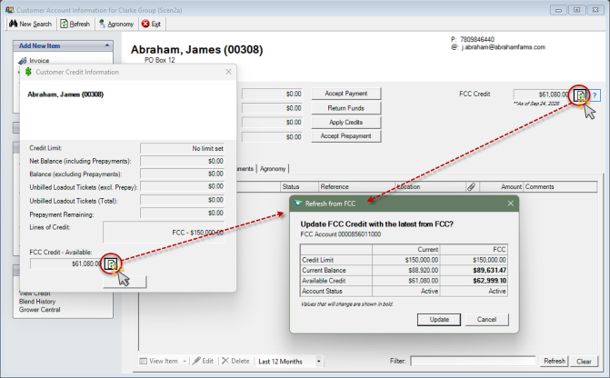
Accounts Receivable > Customer Accounts
Inventory
Manual Counts
You can override the GL Account even after you've added and counted products.
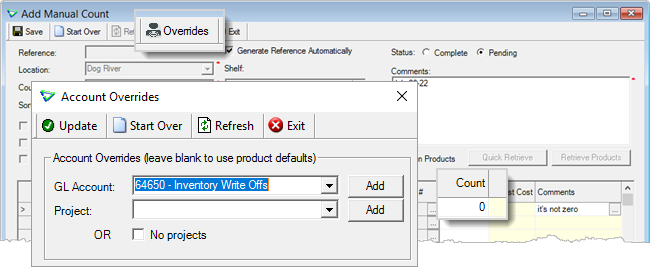
Inventory > Manual Counts
Manufacturing
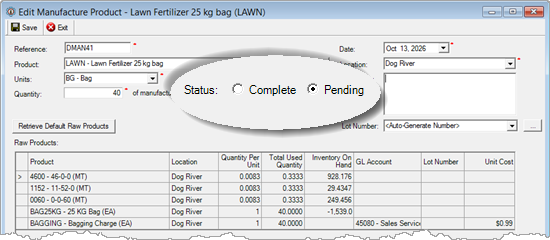
Status = Pending
For manufacturing that is happening in the future that you want to plan now, flag it as Pending.
Inventory pending manufacture doesn't move.
It's still counted as raw product and the position of all products remains unchanged.
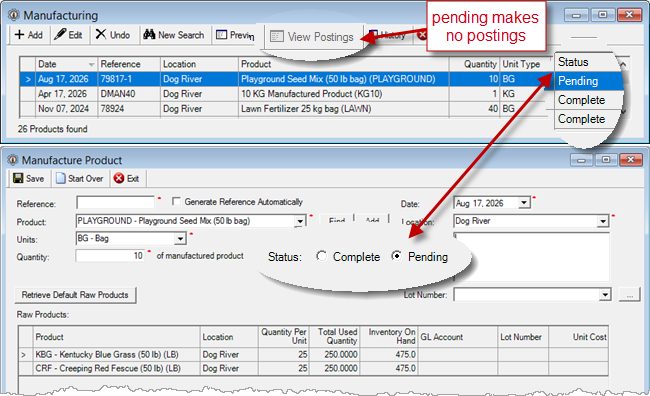
Inventory > Manufacturing
The report shows the manufacturing as Pending.
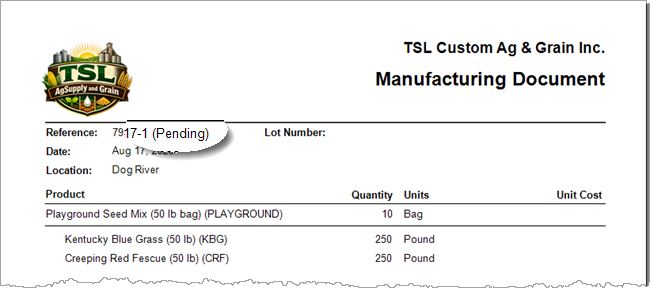
Inventory > Reports
The Pending quantity is displayed on the Inventory Position and Detail reports.
(ask your CSC to deploy the Pending Manufacturing layouts to your database)
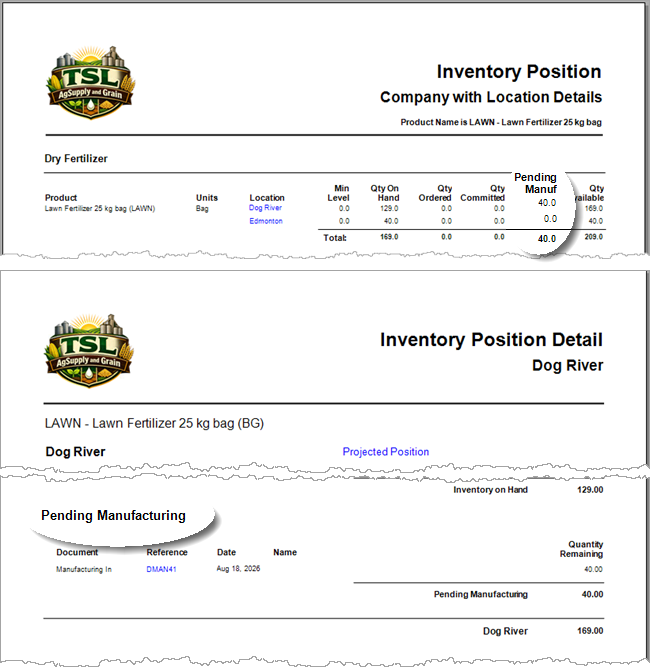
Inventory > Reports
You'll also see the Pending quantity in Product Price Check.
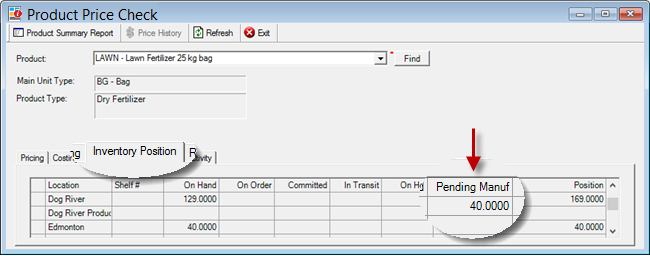
Inventory > Product Price Check / Inventory Position tab
Product Forecasts
Forecast by Supplier
Fiscal period forecasts can have Supplier Allocations.
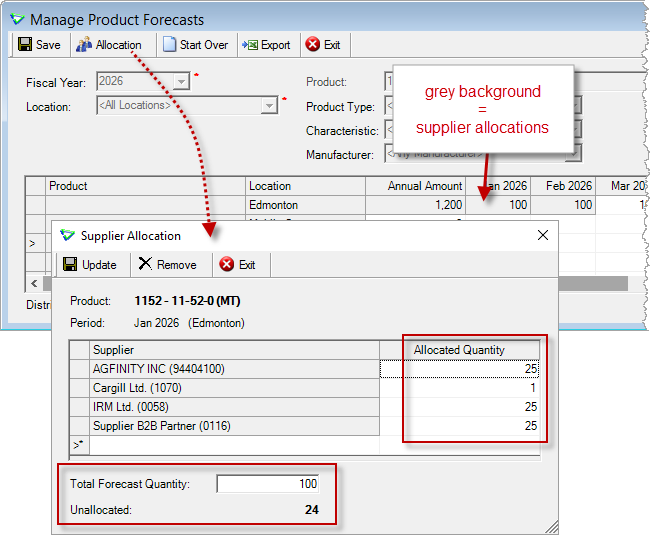
Inventory > Manage > Product Forecasts
The Inventory Forecast Position report displays combined Supplier Allocations.
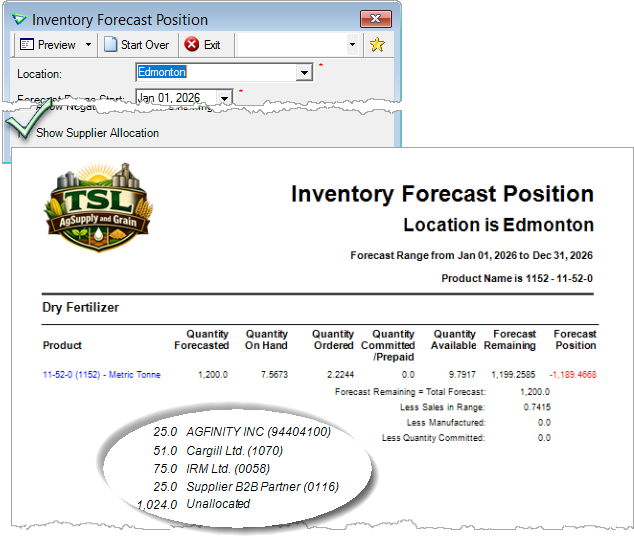
Inventory > Reports
Unit Type Quantity Caps
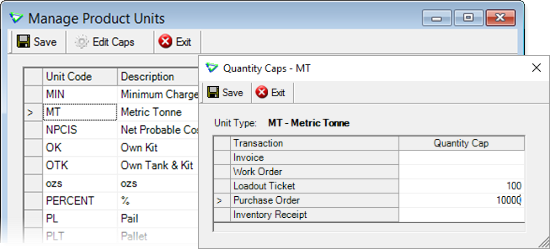
Cap quantity by Unit Type to help prevent data entry errors.
For example you might want to set Quantity Caps of 100 MT on Loadout Tickets and 10,000 MT on Purchase Orders.
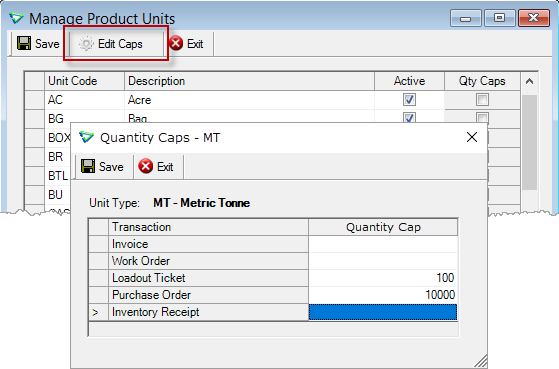
Inventory > Manage > Product Units
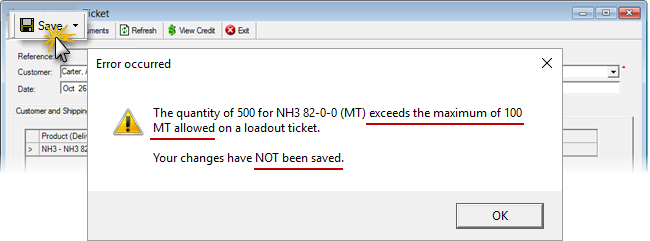
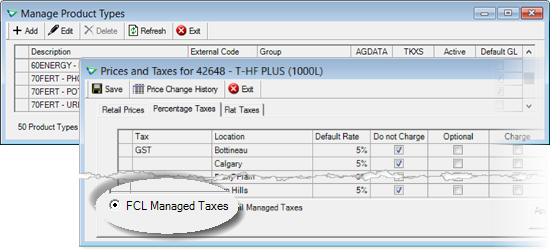
Accounts Receivable > Loadout Tickets
Tax Settings Tax Settings for Energy and Fertilizer Products
When initially importing tax settings for Energy products (category 60) and Fertilizer (category 70) if any price/tax record exists for that product it is flagged as Retail Managed
When changing tax settings for Energy products and Fertilizer from Retail Maintained Taxes to FCL Managed Taxes, the tax settings provided by FCL are retrieved. This works for GST and PST.
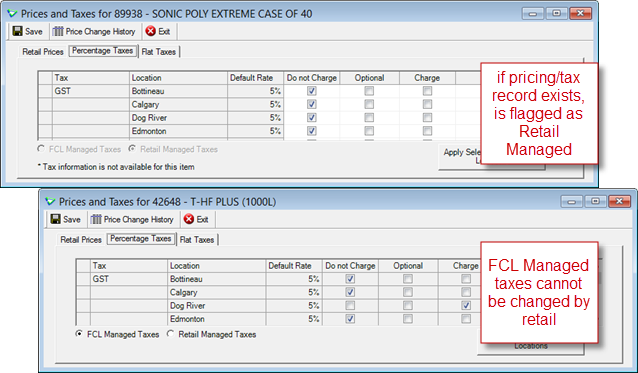
Inventory > Manage > Products > Prices/Taxes
Accounts Payable
Purchase Orders
Extend or Close Expired
More criteria to filter expired purchase orders.
Batch Extend per PO, or use Close All / Extend All
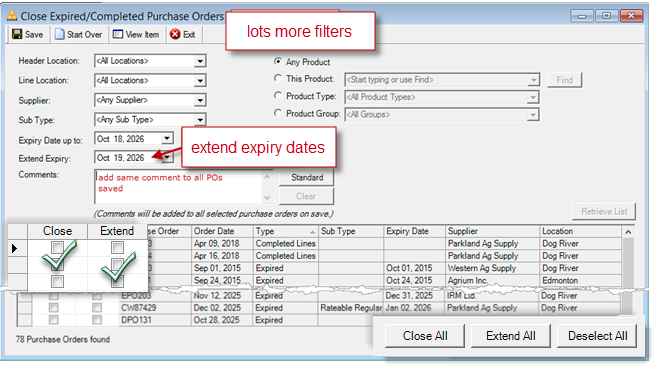
Accounts Payable > Close Expired Purchase Orders
Release Numbers, Truckers, and Unit #s
Trucker and Unit # can be entered either directly in the table or from Edit Release Row.
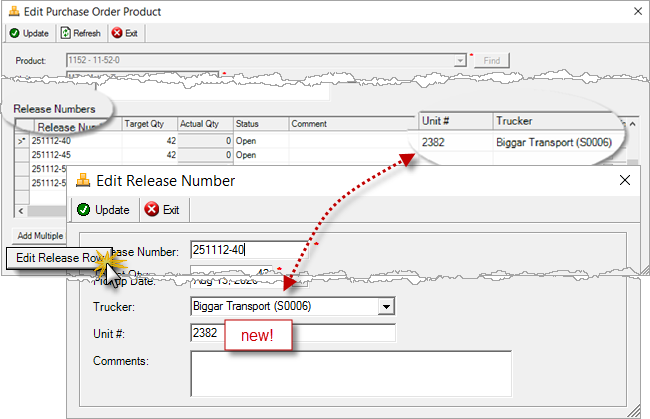
Accounts Payable > Purchase Orders / Edit Product Row / Edit Release Row
Purchase Order Report
Unit # displays on the PO report.
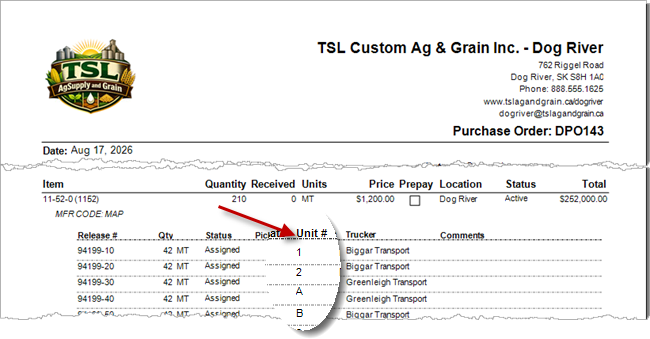
Release Number Home Form
Search for release numbers by Trucker and Unit # (including partial match).
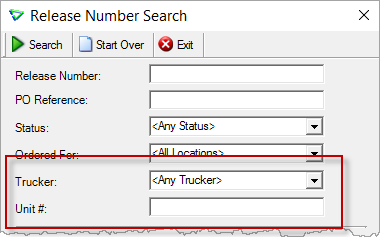
Inventory > Release Numbers
Unit # and Trucker are displayed.
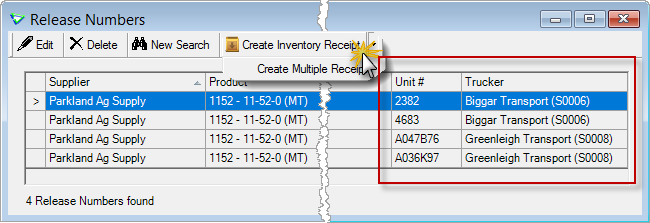
Inventory > Release Numbers
Create Inventory Receipt / Create Multiple Receipts
Trucker and Unit # are copied to Inventory Receipts.
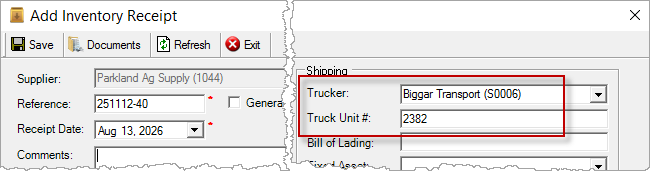
Inventory > Release Numbers / Create Inventory Receipt
Reports & Exports
Note
Security settings are managed by your local company security administrators. As with all new features, we don’t presume to know who should have access to new Exports and Reports and who should not so we leave that up to them.
New Reports
| Report Name | Description |
|---|---|
| AR / Pick Ticket | details of a pick ticket |
| AR / Pick Ticket Activity | details of multiple pick tickets from a date range |
| GL / Cashflow Statement | movement in cash (and cash equivalents) using the indirect method |
Updates to Current Reports
| Report Name | What's New? |
|---|---|
| AR / Email Batch Confirmation | data: attached filenames |
| AR / Invoice - BaseNoSubtotal only | displays location logos (deployed in August) |
| AR / Loadout Ticket | data: Work Order [for products in blends] |
| AR / Loadout Ticket Activity | criteria: Entry Dates data: Work Order [<WO Avail>, <Emb. WO Avail>] |
| AR / Work Order Activity | criteria: Report in Main Unit |
| INV/ Inventory Balances | new layout: Inventory Balances All Units |
| INV / Inventory Activity Detail | criteria: Transfer Type [Inventory Transfer Adjustment] |
| INV / Inventory Activity Summary | criteria: Transaction Type [Inventory Transfer Adjustment] |
| INV / Inventory Adjustment | criteria: Transfer Type [Inventory Transfer Adjustment] |
| INV / Inventory Forecast Position | criteria: Show Supplier Allocations data: Supplier Allocations |
| INV / Inventory Position | new layout: Inventory Positions All Units data: Pending Manufacturing |
| INV / Inventory Position Detail | data: Pending Manufacturing |
| AP / Purchase Order | data: Unit # |
| BLEND / Blend History | criteria: Include [Pick Tickets] |
| BLEND / Blend Batch Sheet | criteria: Source [Pick Tickets] |
Exports
New Exports
| Export Name | Description |
|---|---|
| AR / AR Adjustments | account and interest adjustments |
| AR / Pick Ticket Details | details of pick tickets |
| AR / Pick Ticket Summary | header information for pick tickets |
| AuditAdmin / Deleted Pick Tickets Details | deleted product rows |
| AuditAudmin / Deleted Pick Ticket | deleted pick tickets |
Configuration Options
Company Config Options
Note
Company Configuration Options are managed by your local company agrē administrators. As with all new features, we don’t presume to know if your administrator would enable a new Config Item or not so we leave that up to them.
New config options are released OFF unless they are replacing/enhancing existing items, in which case we do our best to match existing functionality. Any exceptions would be noted.
| Tab / Subtab | Config Item | Description |
|---|---|---|
| AR / Invoices | Notify on $0 Unit Price | show popup on Save |
| AR / Pick Tickets | Automatically generate RefNo Offer to import Work Orders Show <WO> Available Sales Rep Mandatory Operator Mandatory Equipment Mandatory Priority Mandatory |
default Pick Ticket behaviour |
| AR / Work Orders / Linking/Importing | Import Work Order to Invoice / LOT / Pick Ticket: Default Quantity | new: Pick Tickets |
| AR / Customers | When customer is approaching or at credit limit: Warning - Include the estimated value of unbilled LOTs |
renamed from: Include estimated value of unbilled LOTs when warning about approaching credit limit (Warning only) |
| AR / Customers | When customer is approaching or at credit limit: Full Stop - Include the estimated value of unbilled LOTs |
when I save a new LOT, add up the value of all unbilled LOTs (including the one I'm adding) and prevent saving if it would exceed the customer's credit limit |
| Blending | Blend History - Transactions | Pick Tickets |
| Inventory | Manufacturing - Show Pending Status - Default Status - Pending |
flag manufacturing as pending |
| Inventory | Inventory Adjustment - Transfer GL Account |
default GL for transfers |
| Reports / Report Options | Offer to Print On Save Show Criteria Window Default Print Copies |
Pick Ticket Batch Sheet on Pick Ticket |
| Reports / Email Defaults / Email Body Defaults | Pick Ticket | default recipients (cc, bcc), body text |
| Reports / Default Criteria | Pick Ticket | paper (plain, letterhead, preprinted form) Show Extended Blend Info Show Blended Products |
| Reports / Blends on Reports | Should blend on reports include the blend description When Blend Products show |
Pick Ticket Pick Ticket |
Location Config Options
| Tab | Config Item | Description |
|---|---|---|
| Reports | Offer to Print on Save Default Print Copies |
Pick Ticket Batch Sheet (Pick Ticket) Pick Ticket |
User Config Options
| Tab / Subtab | Config Item | Description |
|---|---|---|
| Blending | Blend History - Transactions | Pick Tickets |
| Reports / Report Options | Offer to Print On Save Show Criteria Window Auto Email Default Print Copies |
Pick Ticket Batch Sheet (Pick Ticket) |
| Reports / Default Criteria | Pick Ticket | paper (plain, letterhead, preprinted form) |
| Email / Email Body Defaults | Pick Ticket | default recipients (cc, bcc), body text |
Security
Note
Security settings are managed by your local company security administrators. As with all new features, we don’t presume to know who should have security permission and who should not so we leave that up to them.
New security permissions are released UNCHECKED unless they are enhancing existing permissions, in which case we do our best to match existing functionality. Any exceptions will be noted.
Role Permissions
| Tab | Item | Action(s) |
|---|---|---|
| Accounts Receivable | Pick Tickets | Add, Edit, Delete, Enable on menu, Import from WO, Link to WO |
| Accounts Receivable | Report - Picket Ticket Report - Pick Ticket Activity |
View View |
| General Ledger | Report - Cashflow Statement | View |
| Administration | API Integrations | Enable on menu |
| Administration | Export Data | AR Adjustments Deleted Pick Tickets Deleted Pick Ticket Details Pick Ticket Details Pick Ticket Summary |