Managing Grain Adjustments
Grain Adjustments are deductions not related to grade applied to Purchase Contracts, Receipts, and Settlements.
Each Adjustment requires an associated GL Account and can be related to one or more commodities and/or locations.
What you'll find:
Note
You'll need to Save a new adjustment before Rates tables can be added.
Adding Adjustments
To add new adjustments:
* indicates a required field (other fields are optional)
Navigate to Grain > Manage > Adjustments.
The Manage Adjustments window opens.
Click Add.
The Add Grain Adjustment window opens.
Type a Code*.
The Code must be unique.
New Adjustments are Active by default (uncheck to deactivate).
Type a Description* .
The Description must be unique.
Settings tab
Adjustment Type = Standard
Check Apply GST if applicable to the adjustment value.
Check Freight if this is a freight adjustment.
Check Include next to each applicable Commodity,
Select the GL Account* from the dropdown list.
A GL Account is required if a commodity is included.
Enter the Default Rate
(a default rate not required if using a commodity rate table on the Settings tab).
Discounts are entered as negative values e.g. -$10.00 (which displays as ($10).
Premiums are entered as positive values e.g. $25.00
(optional) Select more options [..] to add customer Overrides.
The commodity Customer Overrides window opens.
Select Customers and enter their override Rates.
Select Save.
The commodity Customer Overrides window closes.
Set the Min Rate* and Max Rate*.
Discounts are entered as negative values e.g. -$10.00 (which displays as ($10.00).
Premiums are entered as positive values e.g. $25.00
Minimum Rate must be less than or equal to the Default Rate which must be less than or equal to the Maximum Rate
e.g. -$75 ≤ -$50 ≤ -$25
Adjustment Type = Grading Factor
If this adjustment is based on a Grading Factor:
Select the Grading Factor from the dropdown menu.
Select Rates to open the Grain Adjustment Rates window.
(optional) Rates and shrinkage can be imported from a worksheet instead of entered manually.
Choose the Commodity and Location.
Rates can be set at the <Company> level, and/or at the Location level (location overrides company level).
Select Start Over to make new choices.
Select Retrieve, then fill in the rates for the chosen location.
Save.
The Grain Adjustment Rates window closes.
Check Include in Monthly Fees to include when calcuating Monthly Grain Fees.
When checked, the adjustment will appear in the Monthly Grain Fees form list box for grain fees.
(One Time Fee is set to true as well)
Monthly fees are added to monthly grain fee invoices, but not to grain receipts discounts schedules.
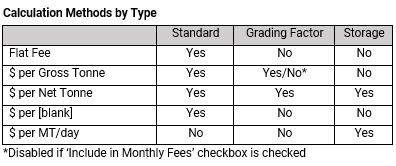
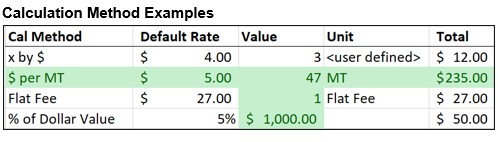
Choose the Calculation Method, GST status, and Freight flag.
Commodity Rates tab
On the Commodity Rates tab, Include the commodities.
Select the GL Account* from the dropdown list.
On the Commodity Rates tab, Include the commodities.
Overrides cannot be set for grading factor adjustments.
Set Min and Max Rates.
Adjustment Type = Storage
If this adjustment is based on Storage days:
Set the Grace Period (# of no-charge storage days).
For example, if Grace Days = 10, the producer has 10 days to transfer a receipt to open storage or link it to a purchase contract.
If the producer waits until Day 11, storage fees will be calculated as of Day 1.
Check Omit grace days charge to exclude the grace days from the grain fees calculation.
For example, if Grace Days = 10 and Omit grace days is checked,
if the producer waits until Day 11 storage fees will be calculated as of Day 11.
Check One Time Fee if this storage adjustment will be applied only once (like an elevator intake fee).
Leave unchecked if the adjustment will be applied multiple times (for example monthly storage fees).
Choose the non-inventory storage fee Product.
This is the 'storage product' that will be added to monthly grain fee invoices.
(you may want to add a new one)
Choose the Calculation Method, GST status, and Freight flag.
(optional) On the Settings tab, select more options [..] to add customer Overrides.
The commodity Customer Overrides window opens.
Select Customers and enter their override Rates and Grace Period days.
If Grace Period is left empty, grace days from the Settings tab are used.
Select Save.
The commodity Customer Overrides window closes.
Set Min and Max Rates.
Click Save to save the adjustment.
The Add Adjustment window closes
Editing Adjustments
You can edit any of your existing Adjustments at any time.
If the adjustment has been used some fields cannot be changed, but the adjustment can be deactivated and a new one created.
To edit a adjustment
Navigate to Grain > Manage > Adjustments.
The Manage Adjustments window opens.
Select a adjustment and click Edit.
The Edit Adjustment window opens.
Make your changes as needed.
Click Save.
The Edit Adjustment window closes.
Deactivating Adjustments
If there's an Adjustment you no longer need but has been used so it can't be deleted, you can deactivate it. After a adjustment has been deactivated it can still be used with transactions that already have that adjustment but you would not be able to add it as a new adjustment to any other transactions.
To deactivate a adjustment
Navigate to Grain > Manage > Adjustments.
The Manage Adjustments window opens.
Select a adjustment and click Edit.
The Edit Adjustment window opens.
Uncheck the Active checkbox.
Click Save.
The Edit Adjustment window closes.
Deleting Adjustments
Deleting an Adjustment deletes it from the database. An Adjustment can be deleted only if it has not been associated with any grain activity - but you can deactivate it if you no longer want to use it.
To delete a adjustment
Navigate to Grain > Manage > Adjustments.
The Manage Adjustments window opens.
Select a adjustment and click Delete.
The Delete Adjustment window opens.
Select Yes to delete the adjustment.
Select No to cancel the deletion.